
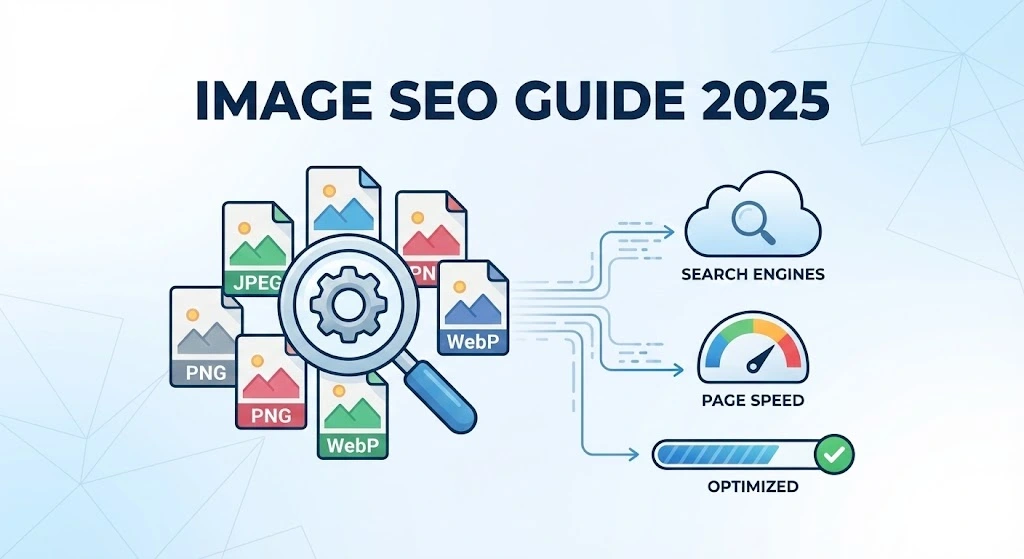
The Step-by-Step Guide to Image SEO
Most new bloggers make a fatal mistake. They ignore Image SEO completely. They focus 100% on words and simply upload a photo without checking it. This hurts your website in two ways.
Google cannot “see” images like humans do. You must use text to tell Google what your image is about. If you do this right, you get two benefits:
- More Traffic: Your images appear in Google Images search results.
- Better Rankings: Your entire article ranks higher because Google understands it better.
Here is the step-by-step guide to mastering Image SEO without technical skills.
1. Copyright: Don’t Get Sued
Before we talk about SEO, we must talk about the law. You cannot just take images from Google.
If you download a random image and put it on your blog, you are stealing. AdSense will reject your site for “Copyright Infringement.” You could also get fined.
Where to find safe images:
- Take them yourself: This is the best option. Google loves unique content. A photo from your phone is better than a professional stock photo.
- Use royalty-free sites: Websites like Unsplash, Pexels, and Pixabay offer free images you can legally use.
- Create them with AI: Tools like Midjourney or Canva AI can create unique images for you.
2. Best Image Format for SEO
Not all image files are the same. Some are heavy; some are light. Choosing the wrong one slows down your site.
- JPEG: Use this for photographs with many colors (like travel photos). It keeps the file size small.
- PNG: Use this for images with text, logos, or transparent backgrounds. It is higher quality but much heavier.
- WebP: This is the modern standard. It was created by Google. It offers high quality at a tiny file size.
Pro Tip: Most modern WordPress plugins automatically convert your JPEGs and PNGs into WebP format for you.
3. Rename Files for Better Image SEO
This is the most common mistake beginners make in Image SEO.. Do not upload a file named IMG_5928.jpg or Screenshot_1.png.
These names tell Google nothing. You must describe the image using keywords.
The Rules:
- Do it offline: Rename the file on your computer before you upload it to WordPress.
- Use hyphens: Google reads hyphens (
-) as spaces. It does not read underscores (_) correctly. - Be descriptive: Tell Google exactly what the image is.
- Use Specific Topics: Don’t ignore rare terms. See why here: Internal Link: Zero-Search Volume Keywords: Why You Should Write About Topics “Nobody” Is Searching For
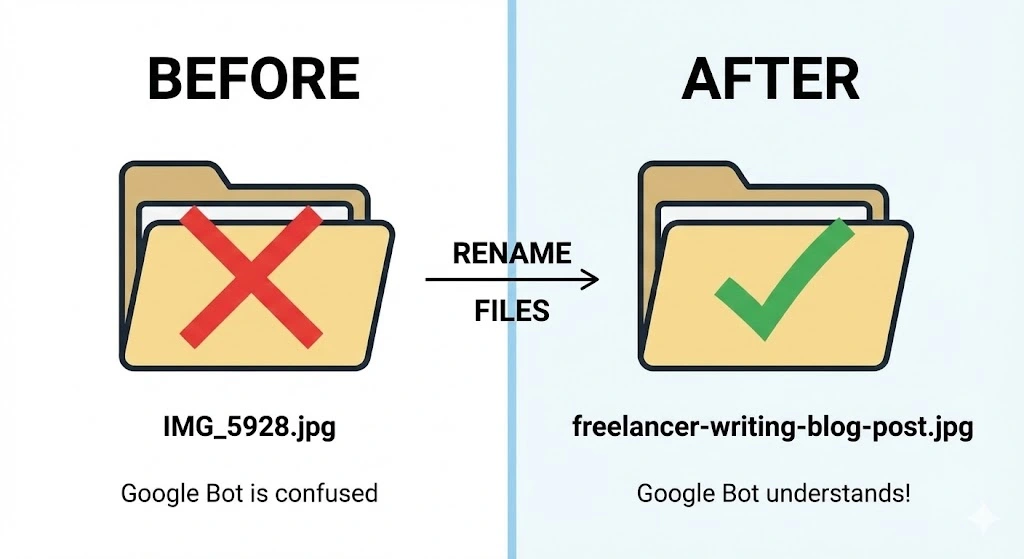
Examples:
- Bad:
DSC001.jpg - Good:
man-working-on-laptop.jpg - Best:
best-seo-tools-for-freelancers-2025.jpg
Why this works: The filename is the first clue Google reads. It tells the search engine exactly what the image contains before it even looks at the page.
4. 📝Write Alt Text to Optimize Images
“Alt Text” (Alternative Text) is a short description of an image. It has a specific purpose: it tells blind users what is on the screen. Google uses this text to rank your images.
How to write perfect Alt Text: Be specific but brief. Describe the image as if you are talking to someone on the phone.
- The Image: A photo of a golden retriever dog running in a park.
- Bad (Vague):
dog - Bad (Spammy):
buy dog food cheap golden retriever puppy training - Perfect:
Golden retriever running on green grass in a park.
Where to find it: In WordPress, click on your image block. Look at the settings sidebar on the right. Find the box labeled “Alternative Text” and type your description there.
5. Resize and Compress for Speed
A raw photo from a camera or stock site is huge (often 5MB+). If you put this on your blog, your page will take 10 seconds to load. Users will leave immediately.
You need to reduce the file size without ruining the quality.
Step A: Resize Dimensions Your blog post area is likely only 800 pixels wide. Do not upload an image that is 4000 pixels wide. Resize it to a max width of 1200px or 800px.
Step B: Compress Data You need to remove hidden data to make the file lighter. The image below visually explains this process.
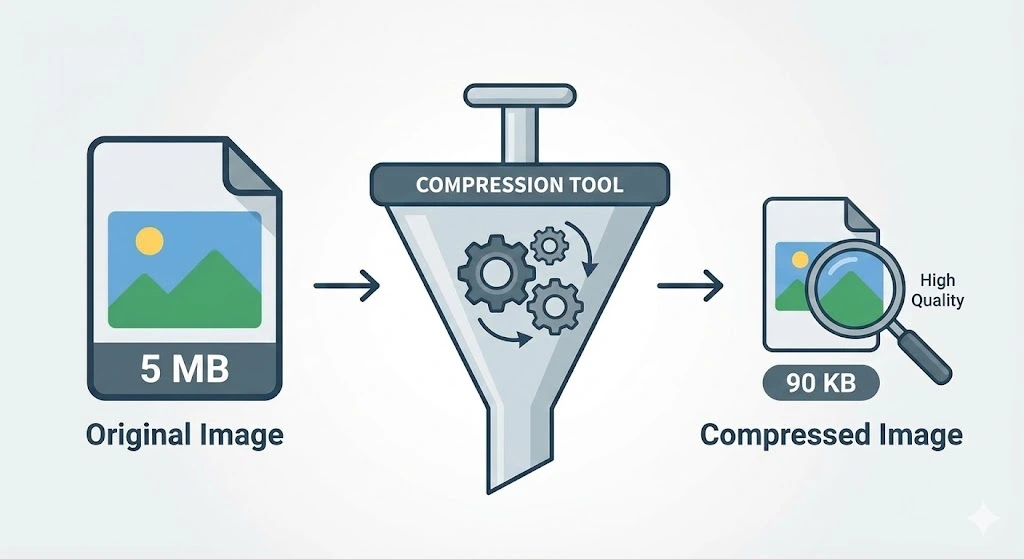
By using a compression tool, you can dramatically reduce file size while maintaining high visual quality.
- Manual Tool: Use TinyPNG.com. Drag your image there, download the small version, then upload it to your site.
- Automatic Plugin: Install Smush or ShortPixel on WordPress. They compress images automatically when you upload them.
The Goal: keep every image under 100 KB to maximize your Image SEO score.
6. Use Lazy Loading
Lazy loading is a speed trick.
Normally, when a user visits your site, the browser tries to load every image at once. This takes a long time.
With lazy loading, the browser only loads the images the user can currently see. The images at the bottom of the page do not load until the user scrolls down.
How to do it: WordPress now does this by default. You do not need to do anything. Just make sure you update your WordPress version regularly.
7. Open Graph Tags and Social Image SEO
Have you ever shared a link on Facebook, but the image looked wrong or was missing? That is an “Open Graph” error.
You want your images to look good when people share your posts.
The Fix: If you use an SEO plugin like Yoast SEO or RankMath:
- Scroll to the bottom of your post editor.
- Click the “Social” tab.
- Upload a specific image for Facebook and Twitter.
- This ensures your thumbnail always looks professional on social media.
Summary Checklist
Before you hit publish on your next post, run this quick audit:
Legal: Do I have the right to use this image?
Filename: Is it named keyword-keyword.jpg?
Format: Is it a JPEG or WebP?
Size: Is it under 100 KB?
Alt Text: Did I write a description for blind users?
❓Frequently Asked Questions
What is the difference between Alt Text and Title Text? Alt Text is for Google and blind users. Title Text is just for your own organization. You only need to worry about Alt Text for SEO.
Do I need a plugin to compress images? It is highly recommended. You can do it manually, but a plugin like Smush saves you time. It works in the background while you write.
How many images should I use in a post? Use enough to make the text easy to read. A good rule is one image for every 300 words. This keeps the reader engaged.
Can I use images from Google Images? No. Most images on Google are copyrighted. Using them can get your site banned or sued. Always use free stock sites like Pexels or Unsplash.
Does Image SEO really help my ranking? Yes. Google has confirmed that page speed and user experience are ranking factors. optimized images improve both of these metrics significantly.
Conclusion
Image SEO is not just a technical trick. It is a necessary part of running a professional website.
If you ignore it, your site will be slow and hard to find. If you fix it, you gain an advantage over lazy competitors.
Start with your next blog post. Rename your files, add Alt Text, and keep the file size small. It takes two extra minutes, but the long-term results are worth it.